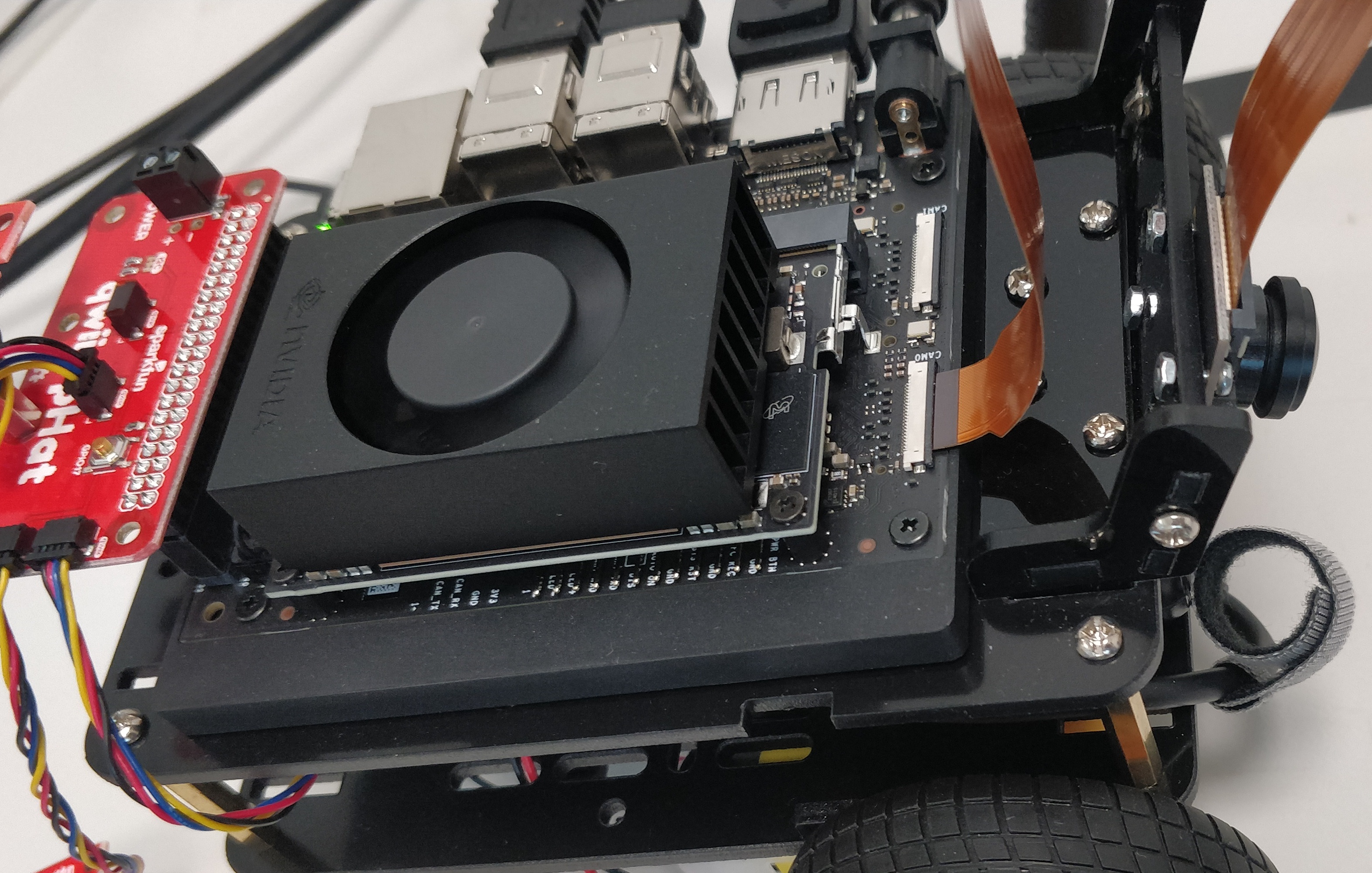
In this notebook, you can test your camera to make sure it's working on the Jetson Orin Nano as expected. It should already be plugged into the MIPI CSI camera port. Make sure there is no obstruction on the camera lens such as a film or cover.
Check to see if the device is available
Execute the following system command to list all video devices on the Jetson Nano. If your camera doesn't show up with a device id, check your connection. You should get an output similar to
crw-rw----+ 1 root video 81, 0 Jun 2 17:35 /dev/video0
!ls -ltrh /dev/video*
Create the camera object
First, create a camera object by importing the CSICamera class from the library by executing the following Python code cell. Please note, you can only create one CSICamera instance.
from jetcam.csi_camera import CSICamera
camera = CSICamera(width=224, height=224, capture_device=0, flip_method=0)
#camera = CSICamera(width=224, height=224, capture_device=1, flip_method=2)
We can then capture a frame from the camera with the read method.
image = camera.read()

print(image.shape)
Calling the read method for camera also updates the camera's internal value. By looking at the value's shape, we see three numbers representing the pixel height, pixel width, and number of color channels.
print(camera.value.shape)
Create a widget to view the image stream
We can create a "widget" to display this image in the notebook. In order to see the image, convert it from its blue-green-red format (brg8) to a format the browser can display (jpeg).
import ipywidgets
import ipywidgets.widgets as widgets
from IPython.display import display
from jetcam.utils import bgr8_to_jpeg

image_widget = ipywidgets.Image(format='jpeg')

image_widget.value = bgr8_to_jpeg(image)

display(image_widget)
You should see an image from the camera if all is working correctly. If there seems to be an image but it's fuzzy or a funny color, check to make sure there is no protective film or cap on the lens.
Now let's watch a live stream from the camera. Set the running value of the camera to continuously update the value in background. This allows you to attach "callbacks" to the camera value changes.
The "callback" here is the function, update_image, which is attached by calling the observe method below. update_image is executed whenever there is a new image available to process, which is then displayed in the widget.
camera.running = True

def update_image(change):
    image = change['new']
    image_widget.value = bgr8_to_jpeg(image)

camera.observe(update_image, names='value')
If you move something in front of the camera, you should now see the live video stream in the widget. To stop it, unattach the callback with the unobserve method.
camera.unobserve(update_image, names='value')
Tip
You can move the widgets (or any cell) to new window tabs in JupyterLab by right-clicking the cell and selecting "Create New View for Output". This way, you can continue to scroll down the JupyterLab notebook and still see the camera view!Another way to view the image stream
You can also use the traitlets dlink method to connect the camera to the widget, using a transform as one of the parameters. This eliminates some steps in the process.
import traitlets

camera_link = traitlets.dlink((camera, 'value'), (image_widget, 'value'), transform=bgr8_to_jpeg)

display(image_widget)
You can remove the camera/widget link with the unlink method.
camera_link.unlink()
... and reconnect it again with link.
camera_link.link()
camera_link.unlink()
Capture and save images
First will start by creatinga few directories where we'll store all our data. We'll create a folder dataset that will contain two sub-folders class_1 and class_2,
where we'll place the images for each scenario.
Task 1: Choose Your Own Classes
Instead of using the default labels class_1 and class_2, modify the code to use two meaningful class names of your choice.
For example:
- mouse vs keyboard
- cup vs bottle
- phone vs notebook
import os

class1_dir = 'dataset/class_1'  # TO DO
class2_dir = 'dataset/class_2'  # TO DO

# we have this "try/except" statement because these next functions can throw an error if the directories exist already
try:
    os.makedirs(class1_dir)
    os.makedirs(class2_dir)
except FileExistsError:
    print('Directories not created because they already exist')
If you refresh the Jupyter file browser on the left, you should now see those directories appear. Next, let's create and display some buttons that we'll use to save snapshots
for each class label. We'll also add some text boxes that will display how many images of each category that we've collected so far. This is useful because we want to make
sure we collect about as many class_1 images as class_2 images. It also helps to know how many images we've collected overall. Beside that we will use the camera widget, which we create previously to show live image from the camera
Task 2: Update the Button Descriptions
Modify the button labels to match your chosen classes.
For example:
- Change
add class1→ - Change
add class2→
button_layout = widgets.Layout(width='128px', height='64px')
class1_button = widgets.Button(description='add class1', button_style='success', layout=button_layout)
class2_button = widgets.Button(description='add class2', button_style='danger', layout=button_layout)
class1_count = widgets.IntText(layout=button_layout, value=len(os.listdir(class1_dir)))
class2_count = widgets.IntText(layout=button_layout, value=len(os.listdir(class2_dir)))

camera_link.link()
display(image_widget)
display(widgets.HBox([class1_count, class1_button]))
display(widgets.HBox([class2_count, class2_button]))
Right now, these buttons wont do anything. We have to attach functions to save images for each category to the buttons' on_click event. We'll save the value of the Image widget (rather than the camera), because it's already in compressed JPEG format!
To make sure we don't repeat any file names (even across different machines!) we'll use the uuid package in python, which defines the uuid1 method to generate a unique identifier. This unique identifier is generated from information like the current time and the machine address.
Task 3: Collect Diverse Images
Collect at least 10 images for each of your chosen classes.
Make sure to capture the objects:
- From different angles
- In different orientations
- With different backgrounds
from uuid import uuid1

def save_snapshot(directory):
    image_path = os.path.join(directory, str(uuid1()) + '.jpg')
    with open(image_path, 'wb') as f:
        f.write(image_widget.value)

def save_class1():
    global class1_dir, class1_count
    save_snapshot(class1_dir)
    class1_count.value = len(os.listdir(class1_dir))

def save_class2():
    global class2_dir, class2_count
    save_snapshot(class2_dir)
    class2_count.value = len(os.listdir(class2_dir))

# attach the callbacks, we use a 'lambda' function to ignore the
# parameter that the on_click event would provide to our function
# because we don't need it.
class1_button.on_click(lambda x: save_class1())
class2_button.on_click(lambda x: save_class2())
Shut down the kernel of this notebook to release the camera resource.
Return to the DLI course pages for the next instructions.
Tip
There can only be one instance of CSICamera or USBCamera at a time. If you want to create a new camera instance, you must first release the existing one. To do so, shut down the notebook's kernel from the JupyterLab pull-down menu: Kernel->Shutdown Kernel, then restart it with Kernel->Restart Kernel.
# Attention!  Execute this cell before moving to another notebook
# The USB camera application only requires that the notebook be reset
# The CSI camera application requires that the 'camera' object be specifically released

import os
import IPython

if type(camera) is CSICamera:
    print("Ignore 'Exception in thread' tracebacks\n")
    camera.cap.release()

os._exit(00)